Hi guys,Today I am going to show you how to create WiFi hotspot network without using any software’s within 2 minutes by using your command prompt in Windows 7 or Windows 8.1/8. In my previous articles I showed you how to create a WiFi network in any windows PC or laptop using Connectify software. This methods works well with all Windows versions 8/7/8.1. Windows 8 users just scroll down up to step 1.
If you using Windows 8.1 then you have two methods one is >> Create WiFi hotspot in Windows 8.1 Watch this video. You can follow the video method and the second method to turn on WiFi hotspot in Windows 8.1 is this article method.
Two methods are different. You can use any method in Windows 8.1 but for Windows 8 you should follow the article or other references given in the tutorial. If you don’t find the Internet Sharing option like in the below Video follow the below Command Prompt method or this connectify method (this method is 100 percent perfect) for Windows 8.1. CMD method might not work some times.
https://www.youtube.com/watch?v=5oDY0MbxkgM
 If it show “yes” as you can in image you can create WiFi hotspot in your PC. Go ahead you’re almost done. If it shows No you PC can’t create hotspot. Don’t close your command prompt until i say close it because we need it again.
 Here FastTechBuzz.com is your WiFi name and FastTechBuzz is your password. You can change your password if you want.


After clicking on that red marked option you will see a window then @Left side topCLICK ON CHANGE ADAPTER SETTINGS then you will see a window like below there you can see the created hotspot name with Local area connection 13.
 Next choose your presently using internet connection (Here i am connected to internet using my BSNL modem) and right click on it and open properties >> then gosharing tab >>choose Local Area network under Home Networking condition as shown in below image click on OK.
Then click OK.Your are done.
If you have any problems post your comments below. I am ready to help you guys. Don’t forget to subscribe to our blog. What’s next ?
If you using Windows 8.1 then you have two methods one is >> Create WiFi hotspot in Windows 8.1 Watch this video. You can follow the video method and the second method to turn on WiFi hotspot in Windows 8.1 is this article method.
Two methods are different. You can use any method in Windows 8.1 but for Windows 8 you should follow the article or other references given in the tutorial. If you don’t find the Internet Sharing option like in the below Video follow the below Command Prompt method or this connectify method (this method is 100 percent perfect) for Windows 8.1. CMD method might not work some times.
https://www.youtube.com/watch?v=5oDY0MbxkgM
This Command Prompt method is only for technical people like you . You may get some problems. I highly recommend the software procedure for everyone Where you can create hotspot with few clicks. Most of the times you cannot access internet in your mobiles using this method so my suggestion is to use this method. Anyway you can give it a try for command prompt method. If you face any issues with this method try this one >>This is 1000% perfect to create hotspot.
Step 1: To Create WiFi Hotspot in Windows 8,8.1, Windows 7 PC
First you need to know that whether your PC hardware supports hotspot feature or not. To check this follow the instructions.
- Open your command prompt in administrative mode(if you don’t know this post your comment I will tell you) .Enter this command :::
netsh wlan show drivers
If it show “yes” as you can in image you can create WiFi hotspot in your PC. Go ahead you’re almost done. If it shows No you PC can’t create hotspot. Don’t close your command prompt until i say close it because we need it again.Step 2 : To Create WiFi Hotspot Network in Windows Laptops
- Enter the below command (your CMD must be open in administrative mode). Share to unlock the command.
netsh wlan set hostednetwork mode=allow ssid=www.FastTechBuzz.com key=FastTechBuzz
- Hit enter then you will see like in below image.If you see image like below then your doing right.Now your hotspot is activated in your PC.
 Here FastTechBuzz.com is your WiFi name and FastTechBuzz is your password. You can change your password if you want.
Recommended For Windows PC Users
Step 3: To Create WiFi Hotspot in Windows 8,8.1/7 Computers
This is to switch on the created WiFi network Again Enter the below command.
netsh wlan start hostednetwork
Press Enter >> now you will see the command prompt as below. Now can close your CMD if you want. your hotspot is created you can see it in your other devices.
SOLUTIONS FOR COMMON WIFI HOTSPOT ERRORS IN WINDOWS 8.1/8:
- If you are getting obtaining IP address in your TABLET or mobile (or)
- Hosted Network couldn’t be started or Any other errors while creating hotspot please use the below method.
- Create Hotspot in Windows with software
Step 4: Share Internet Connection in Windows 8/8.1/7
This is to share internet connection with other devices. For this
- Click on windows button in your keyboard .
- Then type Network and sharing as shown in below image
- click on settings there highlighted with yellow then click on the red marked option.

After clicking on that red marked option you will see a window then @Left side topCLICK ON CHANGE ADAPTER SETTINGS then you will see a window like below there you can see the created hotspot name with Local area connection 13.
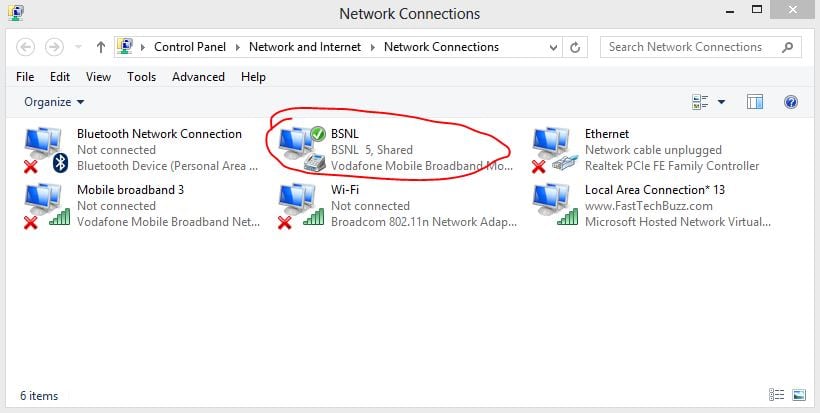 Next choose your presently using internet connection (Here i am connected to internet using my BSNL modem) and right click on it and open properties >> then gosharing tab >>choose Local Area network under Home Networking condition as shown in below image click on OK.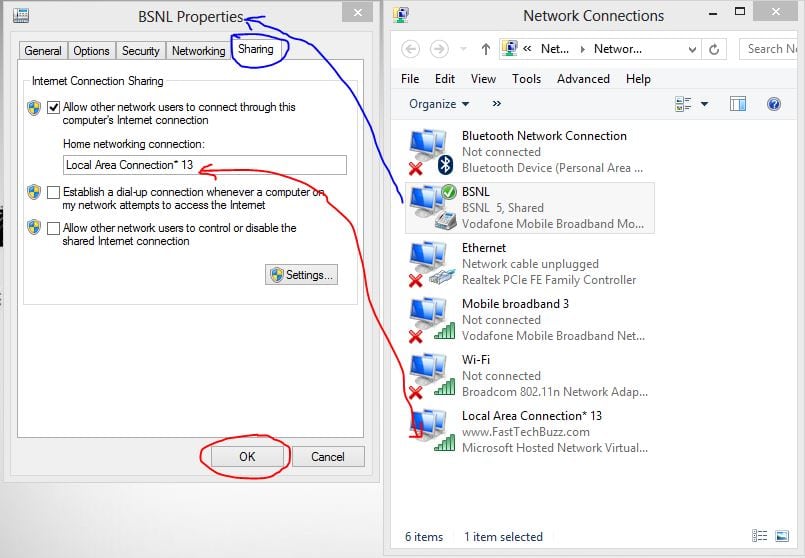
Then click OK.Your are done.
If you have any problems post your comments below. I am ready to help you guys. Don’t forget to subscribe to our blog. What’s next ?
Comments
Post a Comment